

Android Settings Pakistan Users Should Change Today
Many Android smartphones in Pakistan, including popular models from Infinix, Tecno, Xiaomi, Redmi, Vivo, Samsung, and Oppo, arrive with factory settings that may not match local needs. These default options can allow background data use, display sensitive notifications, show promotional alerts, and use more battery than necessary.
Changing a few Android settings Pakistan users commonly overlook can help extend battery backup during load shedding, reduce data usage on Jazz, Zong, Ufone, and Telenor packages, improve privacy, and make budget phones feel faster. The exact menu names can vary by Android version and phone brand, but the settings below are available on many modern Android devices.
This guide explains practical Android battery-saving tips, privacy controls, and ways to save mobile data in Pakistan without installing questionable “phone booster” apps.

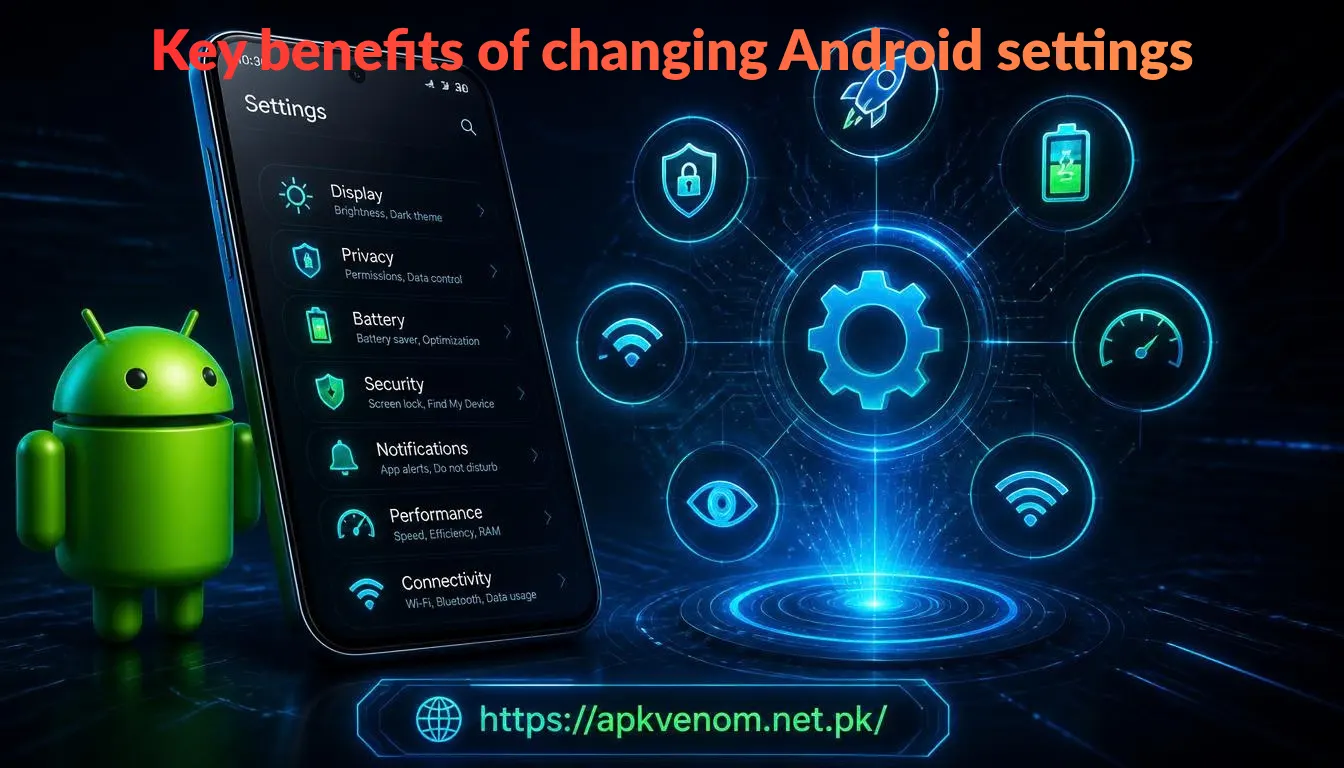
Key benefits of changing Android settings
Optimizing your phone does not magically create extra battery capacity or mobile data. However, it can reduce unnecessary background activity and give you more control over how your device behaves.
These Android settings can help you:
-
Reduce background mobile data usage by social media applications
-
Limit unnecessary Wi-Fi and Bluetooth location scanning
-
Hide banking, JazzCash, EasyPaisa, and OTP notification details
-
Reduce distracting advertisements from pre-installed apps
-
Make phone animations feel faster on budget hardware
-
Keep your SMS inbox cleaner by removing old one-time codes
-
Set up Emergency SOS information for safety

For more help with managing your device, see our Android phone security guide and mobile data saving tips for Pakistan.
1. Turn off Wi-Fi and Bluetooth scanning
Many users switch off Wi-Fi and Bluetooth from the Quick Settings panel but do not realize that location-related scanning can remain enabled. Android may continue looking for nearby Wi-Fi networks and Bluetooth devices to improve location accuracy.
If you rarely depend on highly precise location features, turning off these options may reduce background activity and support better standby battery performance.
Typical path: Settings > Location > Location Services > Wi-Fi Scanning and Bluetooth Scanning
Turn off both Wi-Fi Scanning and Bluetooth Scanning. On some Xiaomi and Redmi phones, these controls may simply appear under Scanning.
Google’s Android support documentation confirms that Wi-Fi and Bluetooth scanning can be managed from the Location or Location Services menus, depending on the Android version.
Check the setting again after making the change. Both scanning options should show as disabled.
2. Restrict background data for heavy apps
TikTok, Facebook, Instagram, YouTube, and similar media-heavy applications can use background data for preloading videos, refreshing feeds, syncing content, and delivering notifications. This can consume prepaid mobile data even when you are not actively using the app.
Typical path: Settings > Apps > See All Apps > Select App > Mobile Data & Wi-Fi
Choose a heavy app and switch off Background Data or Allow background data usage. The exact wording differs between phone brands.
Do not restrict background data for essential communication apps unless you understand the impact. Limiting WhatsApp, Signal, or another messaging app may delay messages, calls, backups, or notifications.
This is one of the most useful Android settings Pakistan users can apply when they use limited prepaid internet packages.
3. Reduce animation speed in Developer Options
Some Android phones feel slow because screen transitions and animations take too long. Reducing animation scales does not upgrade the processor, but it can make app switching, folder opening, and menu movement feel more responsive.
Typical path: Settings > About Phone > Tap Build Number seven times > System > Developer Options
Change these three settings from 1x to 0.5x:
-
Window animation scale
-
Transition animation scale
-
Animator duration scale
If you cannot find Build Number, search for it within your Settings app. Some brands place it under Software Information or Version.
Avoid changing unfamiliar Developer Options. These menus include advanced controls, and unnecessary changes can affect phone behavior.
4. Review Google usage and diagnostic sharing
Android and Google services can collect diagnostic information, such as app performance details, crash reports, and system information. Reviewing these permissions gives you more control over what your phone shares.
Typical path: Settings > Google > More or three-dot menu > Usage & diagnostics
Turn off the setting if you do not want to share usage and diagnostic data. The location and wording may vary by manufacturer and Android release.
This is mainly an Android privacy settings choice. It may reduce some background reporting, but users should not expect a major battery improvement from this setting alone.
5. Use Dark Mode and Battery Saver
Dark Mode can be helpful on many phones, especially devices with OLED or AMOLED displays, where black pixels may use less power. On LCD devices, the battery benefit can be smaller, but Dark Mode may still be easier on the eyes in low light.
Typical path: Settings > Display > Dark Theme
Battery Saver path: Settings > Battery > Battery Saver
Enable Dark Theme and schedule Battery Saver to activate automatically at 20% or another level that suits your routine. Battery Saver usually limits background activity, syncing, and some visual effects to preserve remaining charge.
These Android battery saving tips are particularly useful when electricity is unavailable or you need your phone to last until you can recharge it.
6. Hide sensitive lock-screen notifications
A lock screen can reveal more information than many users realize. Full notification previews may expose banking alerts, transaction details, JazzCash or EasyPaisa messages, and one-time passwords to anyone who can see your phone screen.
Typical path: Settings > Notifications > Notifications on Lock Screen
Select Hide sensitive content or Show sensitive content only when unlocked. The precise label differs on Samsung, Xiaomi, Infinix, Tecno, Vivo, and other Android devices.
After enabling it, lock your phone and ask someone to send a test message. You should see that the notification appears without displaying the full message content.
7. Disable bloatware notifications
Some phone brands include pre-installed stores, game hubs, browsers, recommendation services, or app marketplaces. These can send promotional notifications that distract you, use data, and encourage unnecessary downloads.
Typical path: Settings > Apps > See All Apps > Select App > Notifications
Look for apps such as Palm Store, V-Appstore, GetApps, Game Space, Browser, or other manufacturer-installed services. Turn off their notifications if you do not want promotional alerts.
Do not disable critical system apps unless you know their purpose. It is safer to disable notifications than to force-stop or remove software that could affect phone features.
8. Delete or reset the advertising ID
Your Android advertising ID is used by apps and advertising systems for advertising and analytics purposes. Deleting it gives you more control over ad personalization, although it does not eliminate advertisements completely.
Typical path: Settings > Privacy > Ads
Select Delete advertising ID and confirm. Some older Android versions may show Reset advertising ID instead.
Google explains that deleting the advertising ID removes that identifier and prevents ads from being based on it, although apps may still show ads based on other information.
9. Set up Emergency SOS and contacts
Emergency SOS can help users quickly start emergency actions from their phone. Available functions differ by device, country, carrier, and Android version, so review the feature carefully before relying on it.
Typical path: Settings > Safety & Emergency > Emergency SOS
Add your emergency information and trusted contacts. Some Android phones may allow emergency actions through a rapid press sequence on the power button, but the exact trigger and options must be checked on your own device.
Google’s guidance recommends opening Safety & Emergency > Emergency SOS and completing the setup from the available menu.support.google
10. Auto-delete old OTP messages
One-time passwords can clutter your SMS inbox and make it harder to find important messages. If you use Google Messages, you may be able to automatically remove OTPs after 24 hours.
Typical path: Google Messages > Profile Icon > Messages Settings > Message Organization
Turn on Auto-delete OTPs after 24 hours. This can remove old verification messages from your inbox automatically.
Remember: deleting an OTP does not make an account safer by itself. Never share OTP codes with anyone, including people claiming to be from a bank, JazzCash, EasyPaisa, NADRA, or a mobile network. The OTP auto-delete setting is designed for inbox organization and convenience.
Factory settings versus optimized settings
Final thoughts
The best Android settings Pakistan users can change are the ones that match their actual needs. Start with background-data controls, lock-screen privacy, Battery Saver, unwanted notification blocking, and Emergency SOS setup.
Settings paths can vary across Android versions and brands, so use the search box inside your phone’s Settings app if a menu name looks different. Small adjustments can make a practical difference in daily battery life, data usage, privacy, and phone usability.

