

Key Takeaw1ays (TL;DR)
-
Game Without Overheating: Bypass Charging 2.0 powers the motherboard directly, bypassing the battery during heavy gaming or load-shedding sessions on power banks.
-
Smart Visual Alerts: Customize the rear Active Halo AI Light for unique incoming calls, notifications, charging status, and music visualization.
-
Street Safety First: Built-in Theft Alert and Peak Proof protect against phone snatching and unwanted shoulder-peeking in public transport.
-
Dual Social Accounts: Run two WhatsApp and Messenger accounts effortlessly with XClone, complete with Social Turbo call recording and voice modulation.

The Infinix Note 40 series has taken the Pakistani smartphone market by storm, offering premium amenities like wireless MagCharge, 120Hz AMOLED displays, and sleek curved designs at an aggressive mid-range price. However, running beneath its polished hardware is XOS 14 (built on Android 14)—a software interface packed with deep customizations, hidden shortcuts, and power-user features that many owners never discover.
Whether you want to lower gaming temperatures during summer power outages, secure your personal chats in public, or automate daily shortcuts, here are the top hidden features and tips for the Infinix Note 40 that Pakistani users will love.

1. All-Scenario Bypass Charging 2.0 (The Summer & Gaming Savior)
Frequent power outages and warm weather mean charging while gaming can generate excessive heat, degrading battery life over time. Infinix’s Bypass Charging 2.0 routes electrical current directly to the motherboard rather than pushing it through the lithium-ion battery.
How to Enable It:
-
Plug in your charger or MagCharge wireless power bank.
-
Launch any game via the Game Zone app or swipe open the Game Assistant Sidebar while in-game.
-
Toggle on Bypass Charging.
Why Pakistani Users Love It: It lowers device temperatures by up to 3°C–5°C while playing PUBG Mobile or Call of Duty, eliminating frame drops caused by thermal throttling during hot afternoons.
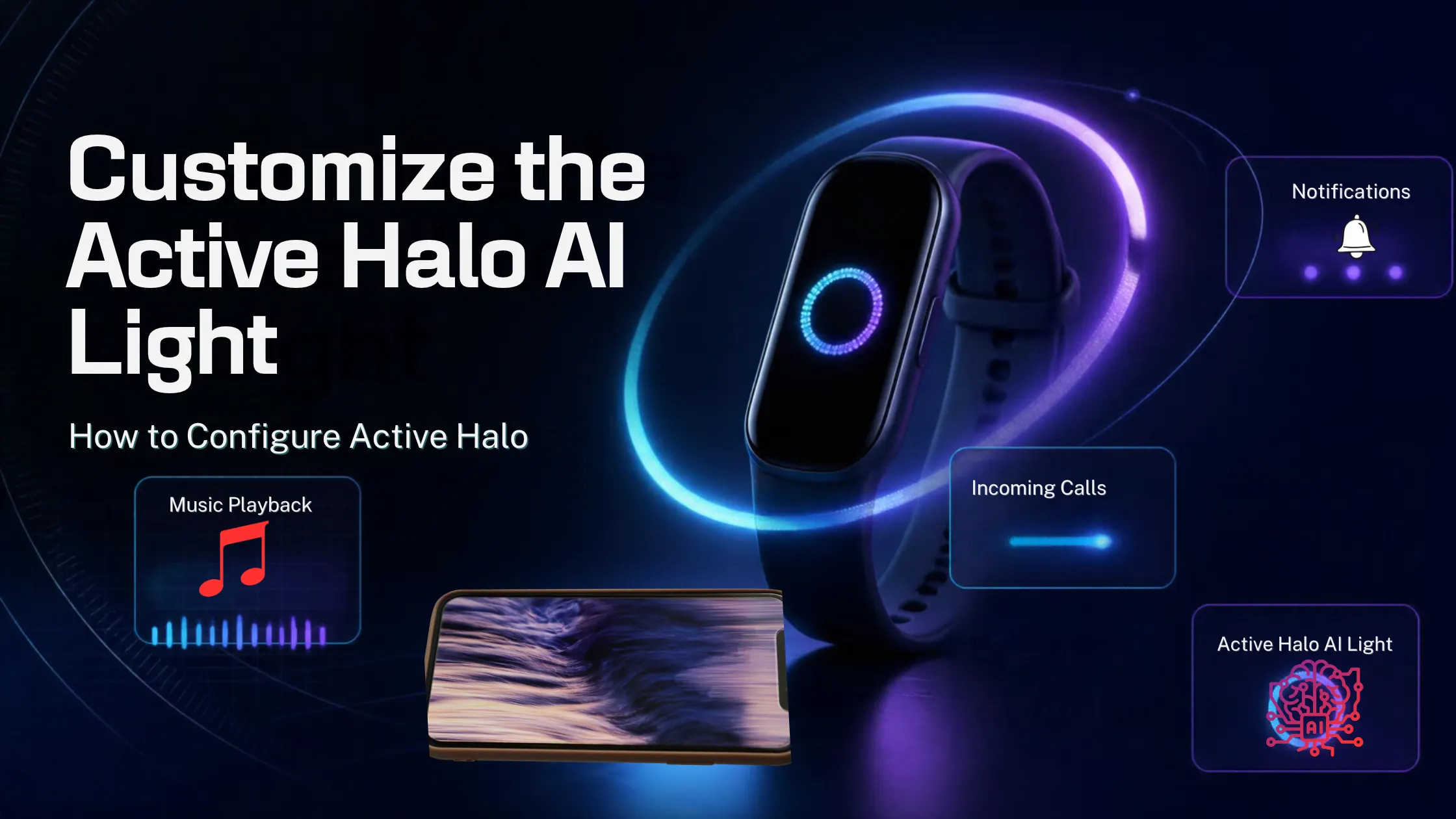
2. Customize the Active Halo AI Light
Located inside the rear camera module, the Active Halo light is more than just a decorative halo—it is a multi-functional ambient notification system powered by subtle lighting patterns.
How to Configure Active Halo:
-
Go to Settings > Special Features > Active Halo.
-
Customize unique lighting rhythms for different events:
-
Incoming Calls: Pulsing pulse pattern for contacts.
-
Notifications: Gentle breathing pulse for unread app alerts.
-
Music Playback: Dynamic rhythm syncing to songs playing via Spotify or YouTube Music.
-
Charging & Game Startup: Distinct glowing visual queues.
-
3. Master the XOS Dynamic Bar
Infinix brought its own smart notification capsule to the front cutout with the Dynamic Bar. Instead of opening apps to check status updates, key phone states are expandable natively from the punch-hole camera.
Features Included in Dynamic Bar:
-
Face Unlock: Smooth status animation during unlocking.
-
Background Calls: Tap to return instantly to active calls.
-
Charging Status: Shows real-time wattage and battery progression.
-
Voice Recording: Live timer display when recording voice notes on WhatsApp or Recorder.
To adjust settings, head to Settings > Special Features > Dynamic Bar and toggle your preferred notification styles.
4. Enhanced Public Security: Theft Alert & Peak Proof
Public safety and privacy are priority concerns when navigating busy streets, bazaars, or public transport in Pakistani cities. XOS 14 includes two crucial tools designed specifically for these scenarios.
Charge & Earphone Theft Alert
If someone unplug-disconnects your phone from a public charger or pulls out wired headphones, an extremely loud alarm will trigger immediately—even if the phone is locked or on silent.
-
Enable: Navigate to Settings > Security & Privacy > Theft Alert and switch on Charge Disconnect Alert and Footnote Earphone Alert.
Peak Proof Privacy Screen
When checking sensitive bank details, Easypaisa/JazzCash balances, or private chats on a bus, Peak Proof darkens specific sections of your screen so people sitting next to you cannot see what you are reading.
-
Enable: Swipe down the Quick Settings Control Center and tap the Peak Proof tile. Drag the highlighted box to cover only the text you are actively viewing.
5. Dual WhatsApp & Social Turbo Enhancer
Managing separate personal and work numbers on a single phone is standard practice in Pakistan. XClone creates duplicate instances of popular social applications natively without third-party clone software.
How to Set Up Dual Apps:
-
Open Settings > Special Features > XClone.
-
Select WhatsApp, Facebook, Messenger, or Instagram.
-
A second app icon will appear on your home screen, ready for a second SIM login.
Social Turbo Upgrades:
Combine XClone with Social Turbo (Settings > Special Features > Social Turbo) to gain access to extra WhatsApp utilities:
-
WhatsApp Voice Changer: Playful real-time voice filters for audio calls.
-
WhatsApp Call Recording: Record important business or personal voice calls natively.
-
Peek Mode: Read incoming messages without sending read-receipt blue ticks or appearing online.
6. Depth Effect Lock Screen & AI Wallpaper Generator
XOS 14 lets you transform your home screen aesthetics with depth-aware clock styles and AI-driven background creation.
Setting Up Depth-Effect Wallpapers:
-
Long-press on any empty spot on your Lock Screen to open the customization engine.
-
Select a high-resolution portrait or subject photo.
-
Enable Depth Effect—the clock numbers will layer seamlessly behind the subject's head or object outline, similar to iOS lock screens.
AI Wallpaper Generator:
Want a custom wallpaper? Go to Settings > Personalization > AI Wallpaper, type a simple prompt (e.g., "Futuristic sports car glowing under neon lights"), and let the internal AI render unique 4K wallpapers in seconds.
7. MemFusion (RAM Expansion) & Game Zone Optimizations
The Infinix Note 40 comes with physical RAM (8GB or 12GB depending on the variant), but heavy multitasking can benefit from additional virtual headroom.
How to Expand Virtual RAM:
-
Go to Settings > Special Features > MemFusion.
-
Choose to expand your RAM by up to +8GB or +12GB utilizing available internal storage space.
-
Restart your phone to apply the changes.
Optimizing PUBG Mobile via Dar-Link Engine:
Infinix’s built-in Dar-Link Gaming Engine stabilizes frame rates and optimizes GPU usage:
-
Open Game Zone, add your installed games, and select Performance Mode.
-
Enable Magic Voice for voice chat masking, and enable Network Acceleration to lower ping spikes on mobile data connections.
Quick Reference Summary Table
| Feature Name | Navigation Path | Primary Benefit |
| Bypass Charging 2.0 | Game Sidebar > Bypass Charging | Prevents phone heating and preserves battery health while gaming. |
| Active Halo Light | Settings > Special Features > Active Halo |
Distinct LED pulse patterns for calls, charging, and notifications. |
| Theft Alert | Settings > Security & Privacy > Theft Alert |
Triggers loud alarm if charger or earphones are unplugged. |
| Peak Proof | Quick Settings Toggle > Peak Proof | Obscures screen sections to protect privacy in crowded areas. |
| XClone & Social Turbo | Settings > Special Features > XClone |
Runs dual WhatsApp accounts & enables WhatsApp call recording. |
| MemFusion RAM | Settings > Special Features > MemFusion |
Converts storage into extra RAM for smooth multitasking. |
Practical Battery Health Tips for Pakistani Users
-
Enable Smart Charge (Night Charging Protection): To safeguard against nocturnal voltage surges or battery degradation from overnight charging, turn on Smart Charge under
Settings > Battery > Smart Charging. It pauses charging at 80% and tops up right before your morning alarm. -
Set Refresh Rate to Auto-Switch: The 120Hz display looks buttery smooth, but forcing 120Hz full-time drains battery faster. Go to
Settings > Display & Brightness > Screen Refresh Rateand select Auto-Switch Refresh Rate to dynamically switch between 60Hz, 90Hz, and 120Hz depending on active content. -
Use Ultra Power Saving During Outages: If you are facing extended power cuts with low battery, activate Ultra Power Saving Mode via the battery menu. This limits background activity to essential phone calls, SMS, and WhatsApp messages, extending 5% remaining battery for hours.
Final Thoughts
The Infinix Note 40 offers exceptional value for money in the Pakistani mobile market, but tweaking these hidden XOS 14 settings takes the user experience from good to exceptional. From reducing gaming thermals with Bypass Charging to safeguarding your privacy on public routes with Peak Proof, optimizing these features ensures you extract every bit of performance and convenience out of your device.

