
Webflow is a website-building platform for people who want more control than a basic drag-and-drop builder but do not want to write code all day. You design pages visually, manage content through its CMS, and publish the site on Webflow’s hosting.
I would not call it the easiest website builder for a complete beginner. The interface takes time to understand. But once you learn the basics, it gives you far more freedom than most simple no-code tools.
What Webflow Actually Does
Webflow combines four things: design, development, content management, and hosting. You build pages on a visual canvas, and the platform creates the underlying HTML, CSS, and JavaScript for you.

It is not just a template editor. You can change spacing, layout, animations, fonts, colors, and responsive behavior in detail. If you understand code, you can add custom code too.
That is why many designers, freelancers, and agencies like it. They can create a custom-looking website without sending every small change to a developer.
That is why many designers, freelancers, and agencies like it. They can create a custom-looking website without sending every small change to a developer. Similar to how platforms like ApkVenom focus on providing optimized digital experiences for mobile users, Webflow ensures that desktop and mobile web environments stay clean and responsive.

Who Should Use Webflow?
Webflow works well for:
-
Freelancers building websites for clients
-
Startups that need a clean marketing site
-
Designers who want visual control
-
Agencies managing several client projects
-
Businesses that want a website without managing plugins or servers
It may not be the best choice if you want the cheapest possible option or need a very specific WordPress plugin. For normal business websites, portfolios, landing pages, and blogs, though, it is a strong option.
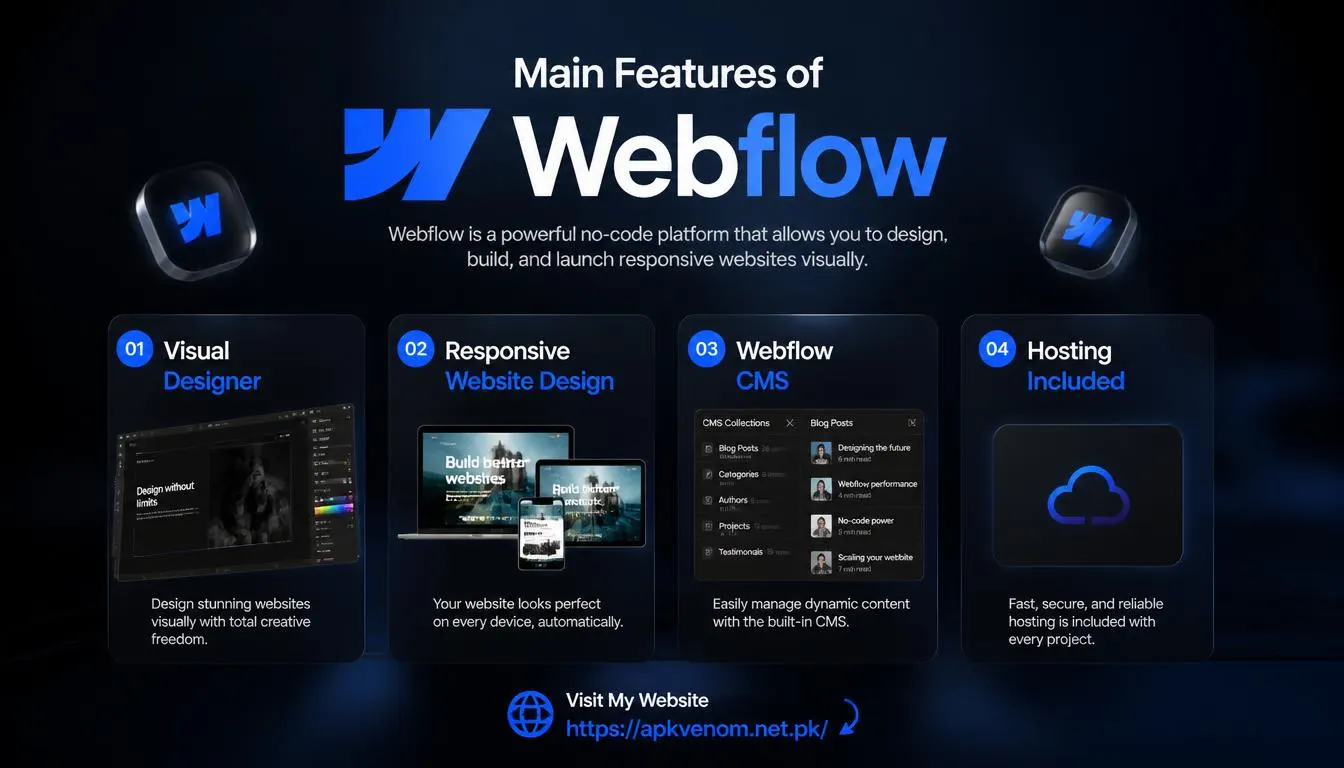
Main Features of Webflow
Visual Designer
The Designer has three main areas: the canvas, the elements panel, and the style panel. You add sections, text, images, and buttons on the canvas, then adjust their appearance from the style panel.
At first, the screen can feel crowded. There are many panels and settings. Give yourself a day or two to practice, and it starts to make sense.
Responsive Website Design
You can switch between desktop, tablet, and mobile views while editing. This helps you catch layout problems before publishing.
For example, a three-column section may look great on a laptop but crowded on a phone. In Webflow, you can stack those columns for mobile without rebuilding the page.
Webflow CMS
The CMS is useful when your site has repeated content. Blog posts, portfolio items, team members, services, and case studies are common examples.
You create one template, then add new content using the same layout. If you publish a blog, this saves a lot of time.
Hosting Included
Paid Site plans include managed hosting powered by AWS and Cloudflare. Webflow handles SSL, caching, security, and content delivery.
This is a major reason some people prefer it over self-hosted WordPress. You do not need to update plugins or worry about server maintenance.
How to Use Webflow for the First Time
1. Create a Free Account
Go to the official Webflow website and sign up. The free plan lets you use the Designer and publish a basic site on a Webflow subdomain.
2. Start With a Template
Choose a template if this is your first project. It is easier to learn by editing a finished design than by starting with a blank page.
3. Learn the Designer Slowly
Do not try to learn every feature on day one. Focus on these three things:
-
Adding sections and elements
-
Changing colors, fonts, and spacing
-
Switching between desktop and mobile views
That is enough to build a simple page.
4. Plan Before You Design
Write down the pages you need. A basic business website may need a home page, services page, about page, contact page, and blog.
Webflow’s own advice is to define your website’s purpose, audience, and success metric before designing. It also recommends preparing real content and mapping the page structure early.
5. Build One Page First
Start with the homepage. Add a header, hero section, services or features, testimonials, FAQ, and footer. Keep it simple.
A clear button or call to action is more important than a fancy animation.
6. Check Mobile View
Open the mobile preview and look carefully at text size, images, buttons, and navigation. Many visitors will use a phone, so this step matters.
7. Publish When Ready
To put the site on your own domain, connect the domain and choose a paid Site plan. Webflow’s paid plans include hosting, SSL, and deployment tools.
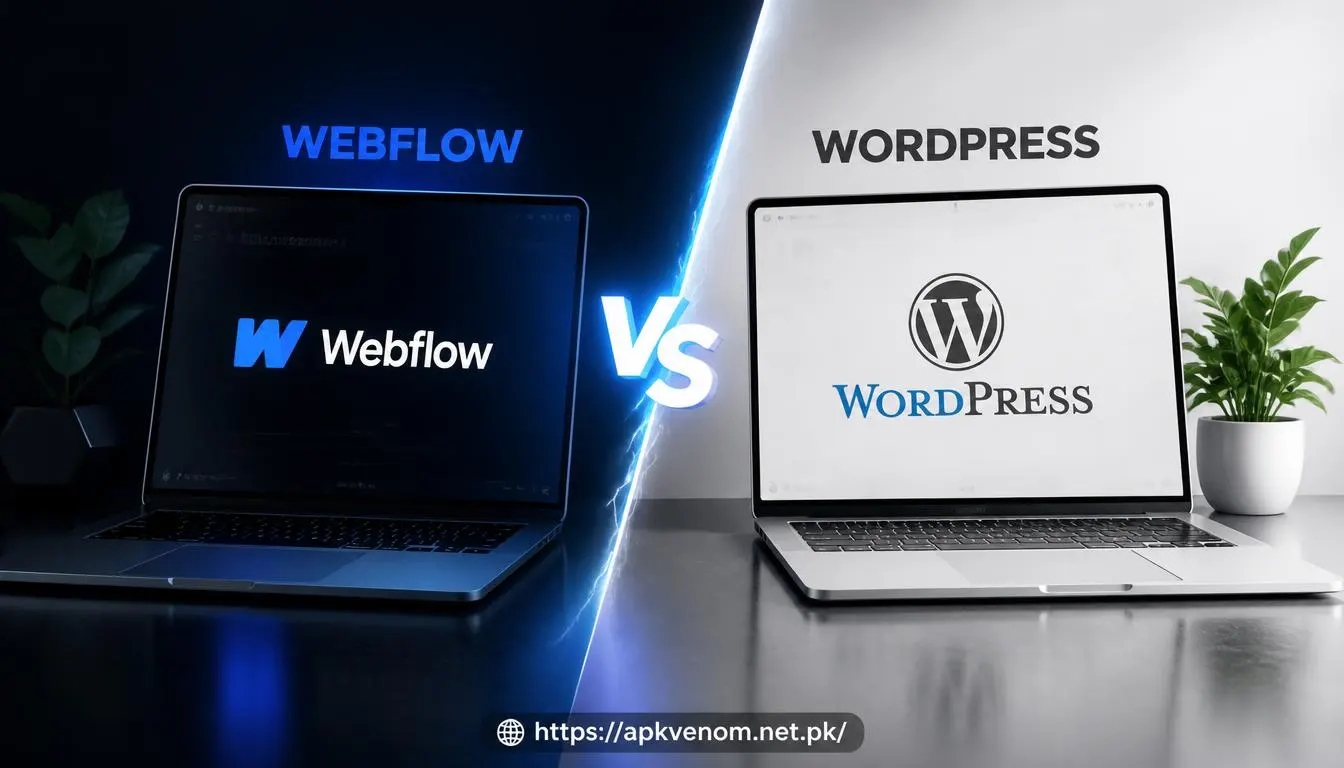
Webflow vs WordPress
People often compare these two platforms, but they are built for slightly different users.
| Factor | Webflow | WordPress |
|---|---|---|
| Platform type | Managed SaaS platform | Open-source CMS |
| Hosting | Included with paid Site plans | You choose and manage hosting |
| Maintenance | Mostly handled by Webflow webflow | You manage updates and security |
| Design control | Strong visual control | Depends on theme and builder |
| Plugins | Limited compared with WordPress | Huge plugin ecosystem |
| Best for | Designers, agencies, business sites | Blogs, custom features, flexible sites |
If you want fewer technical tasks, Webflow is easier to maintain. If you need a specific plugin or want more flexibility, WordPress may be the better choice.
Webflow Pricing
Webflow has a free plan and paid Site plans. The free plan includes a Webflow.io domain, limited CMS access, two static pages, and 1GB bandwidth.
Paid plans add custom domains, more bandwidth, CMS features, and managed hosting. Hosting is included with every paid Site plan.
Before choosing a plan, think about:
-
Do you need a custom domain?
-
How much traffic do you expect?
-
Do you need CMS collections?
-
Do you need ecommerce?
-
Do you need team access?
If you are only practicing, start free. If you want a live business website, budget for hosting.
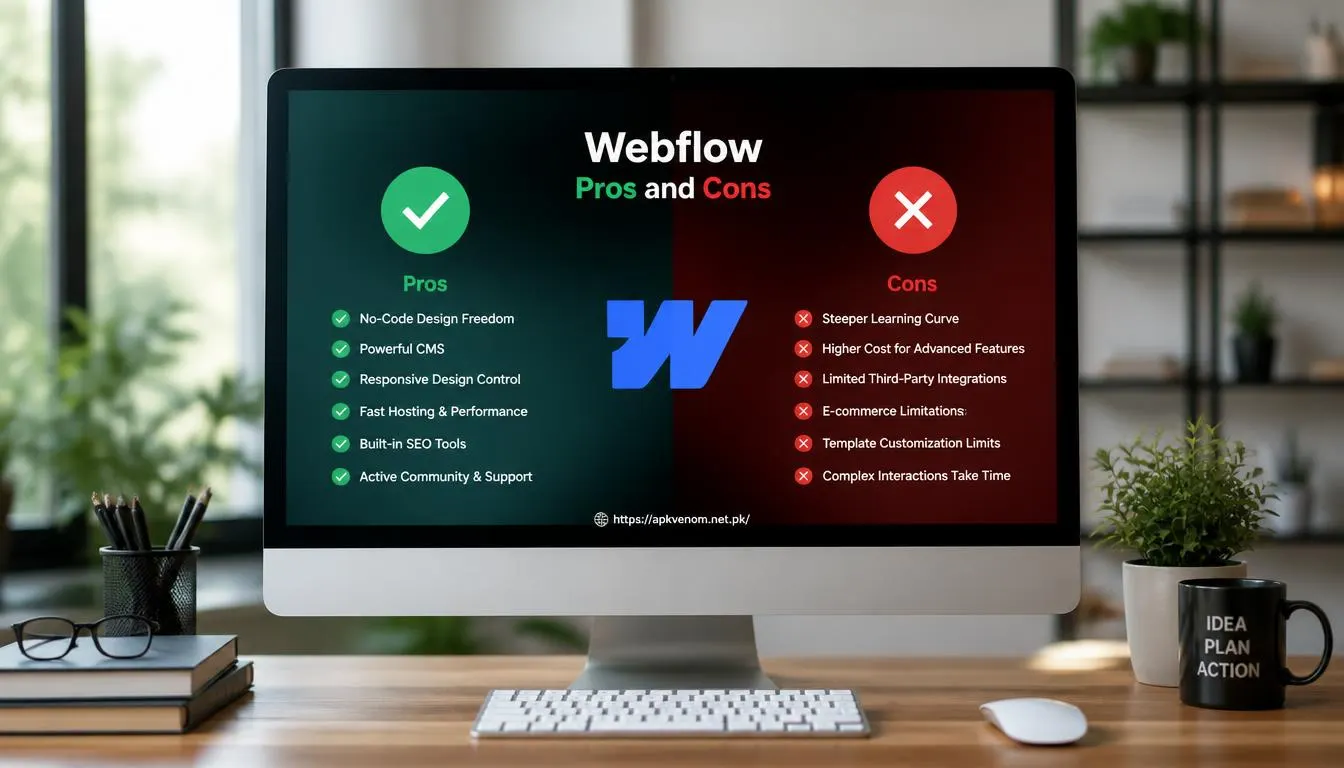
Pros and Cons
Pros
-
Strong visual design control
-
CMS for blogs and repeated content
-
Managed hosting with paid plans
-
No plugin updates or server management
-
Good for responsive websites
-
Built-in SEO settings
Cons
-
Learning curve for beginners
-
Paid hosting required for a custom domain
-
Fewer plugins than WordPress
-
Can feel expensive for very small projects
-
Not ideal if you need highly specialized functionality
Common Beginner Mistakes
New users often make the same errors:
-
Using too many fonts and colors
-
Ignoring the mobile version
-
Uploading huge images
-
Adding too many animations
-
Building confusing menus
-
Forgetting SEO settings
-
Publishing without testing forms
Start simple. You can always improve the design after launch.
Final Verdict
Webflow is a good choice if you want a professional website without dealing with hosting setups, plugin updates, or too much code. It gives designers real control while handling many technical tasks for them.
My advice is simple: start with one landing page. Learn the Designer, test it on mobile, then move to a full website. With clean design and proper SEO settings, Webflow can help you launch a site that looks professional and loads well

